GeM Buyer Registration Process Guide 2026: Complete Step-by-Step Registration for Government Departments, PSUs & Autonomous Bodies
menu_book Table of Contents
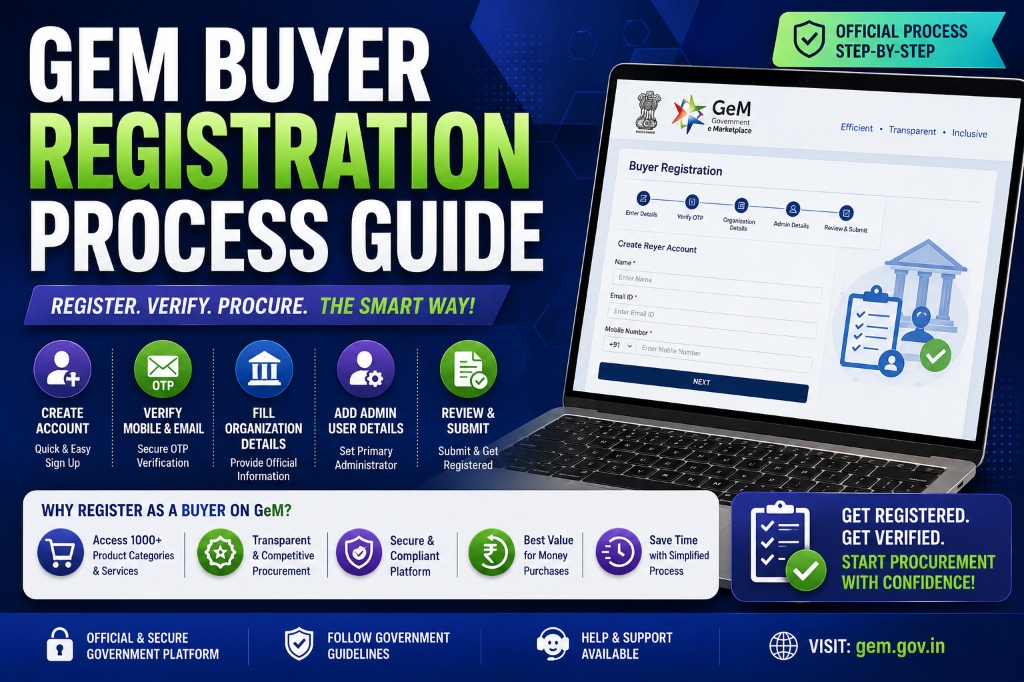
Introduction: Why Every Government Entity Must Register on GeM
The Government e-Marketplace (GeM) is no longer optional for government procurement in India. Under GFR Rule 149 and the Allocation of Business Rules, 1961, it is mandatory for all central government ministries, departments, and organizations to procure goods and services available on GeM. State governments, PSUs, autonomous bodies, and local bodies are also strongly encouraged — and in many cases required — to route their procurement through the platform. For the comprehensive end-to-end framework, consult our government tender guide for MSMEs. To understand foundational rules, refer to our complete GeM portal guide. (See also: GeM Seller vs Buyer Dashboard Differences Guide).
The numbers tell the story:
| GeM Metric | Value (FY 2025-26) |
|---|---|
| Cumulative GMV | ₹18.4 lakh crore |
| GMV in FY 2025-26 alone | ₹5 lakh crore |
| Primary Buyers registered | 1,67,961 |
| Secondary Buyers registered | 2,42,249 |
| Product Categories | 10,730 |
| Service Categories | 350 |
| Order Volume (Last FY) | 72,37,489 orders |
| Order Value (Last FY) | ₹5,43,041 crore |
| MSE Share of Orders | 68% by volume |
| MSE Share of GMV | 47.1% |
With over 4.1 lakh registered buyers (Primary + Secondary combined) and 72+ lakh orders processed annually, GeM has become the backbone of government procurement in India. Yet thousands of government departments — especially at the state and local body level — still operate outside the platform, risking non-compliance with GFR 2017 and missing out on the transparency, efficiency, and cost savings that GeM offers.
The most critical insight? GeM buyer registration is completely free, takes less than 45 minutes to complete, and requires no technical expertise. The only barrier is knowing the exact process — which is what this guide provides.
Whether you're the Head of Department at a central ministry, a procurement officer at a state PSU, or an administrative head at an autonomous university, this guide walks you through every step of registering your organization as a buyer on GeM.
Key Insight: GeM is not just a procurement portal — it is a compliance mandate. Departments that fail to register and procure through GeM may face audit objections, CAG scrutiny, and violation of GFR 2017 procurement rules.
🚀 Are you a seller looking to register on GeM? Read our GeM Seller Registration Complete Guide 2026 for the seller-side process.

Get the GeM Success Toolkit
Register, list, bid, and win on GeM without losing a single rupee in deposits or caution money.
- ✓ 150-Point Pre-Submission Checklist (PDF)
- ✓ EMD & BG Format Verification Guide + Excel Checker
- ✓ GST / PAN / TAN Cross-Verification Guide
- ✓ MSME EMD Exemption Claim Letters (4 Formats)
🔒 256-Bit Secure Razorpay Checkout · Lifetime Access · Instant Digital Delivery
What Is GeM Buyer Registration? Definition & Scope
GeM buyer registration is the process by which a government entity, public sector undertaking, autonomous body, or eligible organization creates an authorized buyer account on the Government e-Marketplace portal (gem.gov.in). Once registered, the organization can:
- Search and compare products and services across 10,730 product categories and 350 service categories
- Procure goods through Direct Purchase, L1 selection, Bidding, or Reverse Auction
- Track orders, invoices, and payments through an integrated dashboard
- Ensure compliance with GFR 2017 and Make in India procurement policies
- Access the MSE-only and startup-only procurement channels
- Generate digital records for audit and transparency
The Legal Mandate
Under GFR Rule 149 (2017 Edition, as amended July 2024), the following procurement rules apply:
"The Procurement of Goods and Services by Ministries or Departments will be mandatory for Goods or Services available on GeM. The credentials of suppliers on GeM shall be certified by GeM SPV. The procuring authorities will certify the reasonableness of rates."
This means:
- If a product/service is available on GeM, government buyers MUST procure it through GeM
- If a product/service is NOT available on GeM, buyers must record reasons and may use alternative procurement methods
- Failure to comply can result in audit objections and financial irregularity findings
What GeM Buyer Registration Is NOT
| Misconception | Reality |
|---|---|
| "Only central government can register" | State govts, PSUs, autonomous bodies, universities, panchayats — ALL can register |
| "Registration costs money" | 100% FREE — no fee, no annual charge |
| "Only procurement officers can register" | HOD/Head of Office registers; then creates buyers, consignees, DDOs |
| "GeM is only for goods" | 350 service categories including IT, manpower, AMC, consultancy |
| "Private companies can register as buyers" | NO — private entities register as SELLERS only |
Who Can Register as a Buyer on GeM? Complete Eligibility List
Not every organization can register as a buyer on GeM. The platform is strictly for government and government-affiliated entities that procure on behalf of the public sector.
Eligible Buyer Categories
| Category | Examples | Registration Type |
|---|---|---|
| Central Government Ministries | Ministry of Defence, Ministry of Finance, Ministry of Education | Primary User (Central Govt) |
| Central Government Departments | Department of Expenditure, Department of Commerce | Primary User (Central Govt) |
| State Governments | Government of Maharashtra, Government of Gujarat | Primary User (State Govt) |
| Union Territories | Delhi, Chandigarh, Puducherry | Primary User (UT) |
| Public Sector Undertakings (PSUs) | ONGC, NTPC, BHEL, SAIL, BSNL | Primary User (PSU) |
| Autonomous Bodies | IITs, NITs, IIMs, CSIR labs, ICAR institutes | Primary User (Autonomous) |
| Statutory Bodies | NHAI, TRAI, SEBI, RBI | Primary User (Statutory) |
| Local Bodies | Municipal Corporations, Municipalities, Nagar Palikas | Primary User (Local Body) |
| Panchayati Raj Organizations | Gram Panchayats, Zilla Parishads | Primary User (Local Body) |
| Educational Institutions | Government schools, colleges, universities | Primary User (University/Educational) |
| Semi-Governmental Organizations | Publicly funded societies, trusts | Primary User (Other) |
| Armed Forces | Army, Navy, Air Force, Coast Guard | Primary User (Defence) |
| Defence PSUs | HAL, BEL, BDL, MDL | Primary User (PSU) |
Who CANNOT Register as a Buyer?
| Entity Type | Can They Register? | What They Should Do |
|---|---|---|
| Private Limited Company | ❌ No | Register as SELLER |
| Proprietorship Firm | ❌ No | Register as SELLER |
| Partnership Firm | ❌ No | Register as SELLER |
| LLP | ❌ No | Register as SELLER |
| Individual / Freelancer | ❌ No | Register as SELLER (if business entity) |
| NGO (Non-Government) | ❌ No | Not eligible unless government-funded |
| Foreign Company | ❌ No (as buyer) | Can register as SELLER with Indian presence |
Important: If your organization is a government-funded NGO or society, you may be eligible under the "Other" category. Contact GeM Helpdesk (helpdesk-gem@gov.in) with your organization's notification/charter for clarification.
Instant Tender Eligibility & Risk Audit
Upload any 500-page NIT / BOQ PDF. Extract hidden disqualification traps, EMD waiver clauses, and complete eligibility criteria in under 45 seconds.
GeM Buyer vs Seller Registration: 10 Key Differences
Understanding the difference between buyer and seller registration is critical — especially for organizations that may need BOTH (e.g., PSUs that procure AND sell services).
| # | Parameter | GeM Buyer Registration | GeM Seller Registration |
|---|---|---|---|
| 1 | Who Can Register | Government entities, PSUs, autonomous bodies, universities, local bodies | Any business: MSME, startup, large enterprise, trader, manufacturer, service provider |
| 2 | Registration Fee | FREE — ₹0 | FREE — ₹0 (but vendor assessment & caution money may apply) |
| 3 | Primary Document | Authorization letter from competent authority + HOD nomination | GST certificate + PAN + Udyam (for MSME benefits) |
| 4 | Email Requirement | Official government email (@gov.in, @nic.in, or departmental domain) | Any valid business email |
| 5 | Aadhaar Requirement | Aadhaar of Primary User (HOD) for OTP verification | Aadhaar of authorized signatory |
| 6 | Role Mapping | Primary User → Buyer, Consignee, DDO, PAO | Seller Admin → Product Manager → Order Manager |
| 7 | Post-Registration Task | Create secondary users, map divisions, set DDO/PAO | List products/services, upload catalogues, set pricing |
| 8 | Procurement Methods | Direct Purchase, L1, Bidding, Reverse Auction | Receive orders, participate in bids, manage deliveries |
| 9 | Payment Flow | DDO/PAO processes payment via PFMS/online banking | Receives payment via GeM escrow (typically within 10 days) |
| 10 | Compliance Focus | GFR 149 thresholds, Make in India preference, MSME reservation | Vendor assessment, product certification, catalogue accuracy |
Can One Organization Be Both Buyer AND Seller?
Yes, but with conditions:
- The organization must have separate user IDs for buyer and seller roles
- PSUs like BHEL, NTPC, ONGC often act as both (they procure raw materials AND sell finished products/services)
- The Primary User for buying and the Seller Admin for selling are different accounts
- Each role requires separate registration and separate document sets
For the seller registration process, read our detailed GeM Seller Registration Complete Guide 2026.
Documents Required for GeM Buyer Registration (Complete Checklist)
Document preparation is the #1 cause of GeM buyer registration delays. Use this checklist to gather everything before starting the online process.
Category A: Organization Identity Documents
| Document | Purpose | Format | Size Limit |
|---|---|---|---|
| Organization PAN Card | Tax identity verification | PDF / JPEG | Max 2 MB |
| GST Certificate | Tax compliance (if GST applicable) | Max 2 MB | |
| Organization Registration Certificate | Legal entity proof (for PSUs/autonomous bodies) | Max 2 MB | |
| Office Address Proof | Electricity bill / Landline bill / Lease deed | PDF / JPEG | Max 2 MB |
Category B: Authorization & Identity Documents
| Document | Purpose | Format | Size Limit |
|---|---|---|---|
| Authorization Letter / Power of Attorney | Nominates Primary User as authorized representative | PDF (on letterhead, signed by competent authority) | Max 2 MB |
| Aadhaar Card of Primary User | Identity verification + OTP linkage | PDF / JPEG | Max 2 MB |
| PAN Card of Primary User | Tax identity of registering official | PDF / JPEG | Max 2 MB |
| Department ID Card | Proof of government employment | PDF / JPEG | Max 2 MB |
Category C: Contact & Banking Details
| Document / Detail | Purpose | Notes |
|---|---|---|
| Official Email ID | All GeM communications | Must be @gov.in, @nic.in, or departmental domain. Gmail/Yahoo NOT accepted for Primary User. |
| Mobile Number | OTP verification | Must be linked to Aadhaar of Primary User |
| Organization Bank Account | Payment processing (if not using PFMS) | Account name must match organization name exactly |
| IFSC Code | Bank routing | Verify with bank before entering |
| Landline Number | Official contact | Department's registered landline |
The Authorization Letter Format (Critical)
The authorization letter is the most rejected document in GeM buyer registration. It MUST contain:
- Organization letterhead with full address and contact details
- Date of issue (within last 6 months)
- Name and designation of the nominated Primary User
- Specific procurement powers delegated (e.g., "authorized to register and conduct procurement on GeM")
- Name and designation of the competent authority signing the letter
- Signature of competent authority with stamp/seal
- Contact details of both signatory and Primary User
Sample Authorization Letter Structure:
[ORGANIZATION LETTERHEAD]

Date: [DD/MM/YYYY]

To,
The GeM Registration Team
Government e-Marketplace

Subject: Authorization for GeM Buyer Registration

This is to authorize Shri/Smt [Name], [Designation],
Employee ID [ID], to register [Organization Name] as a
buyer on the Government e-Marketplace (GeM) portal and
to conduct procurement activities on behalf of the
organization.

The authorized person is permitted to:
- Register the organization on GeM
- Create and manage secondary user accounts
- Place orders and conduct bidding
- Process payments through DDO/PAO

This authorization is valid until revoked in writing.

Authorized by:
[Name of Competent Authority]
[Designation]
[Signature]
[Seal/Stamp]

Contact: [Phone] | [Email]
Step-by-Step GeM Buyer Registration Process (With Screenshots)
The complete registration process takes 30–45 minutes if all documents are ready. Follow these steps exactly:
Pre-Registration Preparation (Before You Start)
| Task | Time | Check |
|---|---|---|
| Gather all documents from checklist above | 15 min | ☐ |
| Ensure Primary User has Aadhaar-linked mobile | 2 min | ☐ |
| Verify official email is active and accessible | 2 min | ☐ |
| Scan all documents in PDF/JPEG (max 2 MB each) | 10 min | ☐ |
| Obtain signed authorization letter on letterhead | 20 min | ☐ |
| Identify Verifying Officer (Under Secretary or equivalent) | 5 min | ☐ |
Step 1: Visit the GeM Portal & Select Buyer Registration
- Go to https://gem.gov.in
- Click "Sign Up" button on the top right
- Select "For Buyers"
- You will be redirected to: https://gem.gov.in/register/buyer/signup
Step 2: Choose Buyer Category
Select the correct category for your organization:
| Category | When to Select | Examples |
|---|---|---|
| Central Government | Ministries, departments, attached offices | Ministry of Finance, DoE |
| State Government | State departments, directorates | Gujarat PWD, Maharashtra Health |
| Union Territory | UT administrations | Delhi Govt, Chandigarh |
| PSU | Public Sector Undertakings | ONGC, NTPC, BHEL |
| Autonomous Body | Bodies under ministries with autonomy | IITs, NITs, CSIR labs |
| Local Body | Municipalities, panchayats | Mumbai Municipal Corp, Gram Panchayat |
| University / Educational | Schools, colleges, universities | Delhi University, IIT Bombay |
| Other | Semi-governmental, statutory | NHAI, unique entities |
Tip: Selecting the wrong category will delay approval. If unsure, contact your organization's administrative wing or GeM Helpdesk before proceeding.
Step 3: Fill Organization Details
Enter the following information:
| Field | What to Enter | Common Mistakes |
|---|---|---|
| Organization Name | Exact name as per PAN/registration | Abbreviations, spelling errors |
| Ministry / Department | Parent ministry or department | Wrong ministry mapping |
| Office Address | Complete address with PIN code | Incomplete address |
| District & State | Select from dropdown | Wrong district selection |
| Official Email | @gov.in / @nic.in / departmental | Using personal email |
| Landline Number | Department's registered landline | Mobile number instead |
| GSTIN | If applicable (not mandatory for all) | Wrong GST format |
Step 4: Create Primary User Account
The Primary User is typically the Head of Department (HOD) or Deputy Secretary / equivalent officer.
| Field | Requirement |
|---|---|
| Name | Full name of HOD |
| Designation | Exact designation |
| Mobile Number | Aadhaar-linked mobile |
| Official government email | |
| User ID | Create a unique username (system checks availability) |
| Password | Strong password (min 8 chars, uppercase, lowercase, number, special char) |
| Security Questions | Select and answer 3 security questions |
Step 5: Verify Email & Mobile via OTP
- Check your official email inbox for OTP from GeM
- Check your mobile for SMS OTP
- Enter both OTPs on the verification screen
- If OTP not received within 2 minutes, click "Resend OTP"
Common Issue: OTPs sometimes land in spam/junk folders. Check there first.
Step 6: Upload Documents
Upload all documents from the checklist:
- Organization PAN Card
- GST Certificate (if applicable)
- Authorization Letter (on letterhead, signed)
- Aadhaar Card of Primary User
- PAN Card of Primary User
- Department ID Proof
- Office Address Proof
- Bank Account Details (if not using PFMS)
Document Upload Rules:
- Format: PDF or JPEG only
- Maximum size: 2 MB per file
- Resolution: Minimum 150 DPI for readability
- Naming: Use descriptive names (e.g., "Org_PAN.pdf", "Auth_Letter.pdf")
Step 7: Add Verifying Officer Details
The Verifying Officer is typically an Under Secretary or equivalent in your organization. Their role is limited:
- They do NOT approve the registration
- They CAN disable the Primary User if required
- They act as an internal oversight mechanism
| Field | What to Enter |
|---|---|
| Name | Verifying Officer's full name |
| Designation | Exact designation |
| Official email | |
| Mobile | Official mobile |
Step 8: Submit for Verification
- Review ALL entered details carefully
- Check the "I agree to Terms & Conditions" box
- Click "Submit"
- Note down the Application Reference Number
- You will receive an acknowledgement email
Step 9: Track & Wait for Approval
| Timeline | What Happens |
|---|---|
| 0–24 hours | GeM verification team reviews documents |
| 24–72 hours | Approval email sent to Primary User's official email |
| 3–7 days | Complex cases (state govts with multiple divisions) |
| After approval | Primary User can log in and create secondary users |
How to Track:
- Log in to gem.gov.in with your User ID and Password
- Go to "My Account" → "Registration Status"
- Or contact GeM Helpdesk with your Application Reference Number
Understanding GeM Buyer Roles: Primary User, Buyer, Consignee, DDO & PAO
GeM uses a role-based access system where different users have different permissions. Understanding these roles is essential for proper organization setup.
Role Hierarchy & Permissions
| Role | Who | What They Can Do | What They CANNOT Do |
|---|---|---|---|
| Primary User (HOD) | Head of Department | Register organization, create ALL secondary users, assign roles, deactivate users, monitor ALL transactions, transfer Primary User rights | Place orders, make payments, receive goods |
| Buyer (Secondary) | Procurement Officer | Search catalogues, compare products, place Direct Purchase orders, create bids, participate in Reverse Auctions, track orders | Create other users, approve payments, access admin settings |
| Consignee | Receiving Officer | Receive goods/services, verify quantity/quality, create PRC (Product Receipt Certificate), create CRAC (Consignee Receipt & Acceptance Certificate) | Place orders, make payments |
| DDO (Disbursing Officer) | Finance Officer | Process bills, forward to PFMS, verify payment details, track payment status | Place orders, receive goods |
| PAO (Paying Authority) | Senior Finance Officer | Authorize and release payments via PFMS/online banking/offline modes | Place orders, receive goods, create users |
Visual Workflow: How Roles Interact
┌─────────────────┐
│  PRIMARY USER   │  (HOD — Admin Only)
│  Registers org  │
│  Creates users  │
└────────┬────────┘
         │
    ┌────┴────┬────────┬────────┐
    ▼         ▼        ▼        ▼
┌───────┐ ┌───────┐ ┌───────┐ ┌───────┐
│ BUYER │ │CONSIGNEE│ │  DDO  │ │  PAO  │
│Places │ │Receives │ │Processes│ │Pays   │
│Order  │ │Goods    │ │Bills   │ │       │
└───┬───┘ └───┬───┘ └───┬───┘ └───┬───┘
    │         │         │         │
    └─────────┴─────────┴─────────┘
              │
              ▼
    ┌─────────────────────┐
    │   ORDER COMPLETE    │
    │  (Digital Record)   │
    └─────────────────────┘
Can One Person Hold Multiple Roles?
Yes, with limitations:
| Combination | Allowed? | Notes |
|---|---|---|
| Buyer + Consignee | ✅ Yes | Most common combination |
| Buyer + DDO | ⚠️ Sometimes | Depends on organization policy |
| Consignee + DDO | ⚠️ Sometimes | Depends on organization policy |
| Primary User + Buyer | ❌ No | Primary User cannot place orders |
| DDO + PAO | ⚠️ Sometimes | In small organizations |
| All roles in one person | ❌ No | Separation of duties required |
Best Practice: In large organizations (ministries, PSUs), maintain separation of duties. In small offices (panchayats, small autonomous bodies), dual roles are acceptable.
Creating Secondary Users: Step-by-Step
After Primary User login:
- Go to "Users" → "Add Division"
- Create divisions (e.g., "Admin Wing", "Technical Wing", "Finance Wing")
- Go to "Add User" for each division
- Enter user details:
- Name, designation, mobile, email
- Aadhaar number (for OTP)
- Select role: Buyer / Consignee / DDO / PAO
- User receives login credentials via email/SMS
- User logs in and completes profile
GFR 149 Procurement Thresholds on GeM: What Buyers Must Know
Every GeM buyer must understand GFR Rule 149 procurement thresholds. These determine WHICH procurement method to use based on the order value.
Current Thresholds (As Amended July 2024)
| Order Value | Procurement Method | Process | Approval Required |
|---|---|---|---|
| Up to ₹25,000 | Direct Purchase | Select any available supplier meeting specs | Competent authority |
| ₹25,001 – ₹5,00,000 | L1 Selection | Select lowest-priced seller among 3+ different manufacturers | Competent authority |
| Above ₹5,00,000 | Bidding / Reverse Auction | Mandatory online bidding or e-RA | HOD / Competent authority |
| Automobiles: Up to ₹30,00,000 | Direct Purchase / L1 | Special exemption for vehicles | Competent authority |
| Automobiles: Above ₹30,00,000 | Bidding / Reverse Auction | Mandatory competitive process | HOD / Competent authority |
Key Compliance Rules for Buyers
Reasonableness Certification: For Direct Purchases below ₹25,000, the buyer must certify that rates are reasonable. If NOT selecting the lowest-priced product, reasons must be recorded.
Three-Manufacturer Rule: For L1 selection (₹25K–₹5L), the product must be available from at least 3 different manufacturers on GeM. If fewer than 3, the buyer must record reasons.
Mandatory Bidding Above ₹5L: No exceptions. All procurements above ₹5 lakh MUST go through GeM's bidding or reverse auction tool.
Make in India Preference: Class-I local suppliers (≥50% local content) get purchase preference over non-local suppliers for tenders up to ₹200 crore.
MSME Reservation: 25% of procurement from MSEs is mandatory for central government buyers. MSEs quoting within L1+15% can match L1 and win 25% share.
Buyer Compliance Checklist Per Order
- Product/service is available on GeM (mandatory if available)
- Correct procurement method selected based on value
- Reasonableness of rates certified
- Make in India preference applied where applicable
- MSME reservation quota tracked
- Proper approval obtained from competent authority
- Order details recorded for audit trail
- Payment processed within 45 days (MSME) / 90 days (others)
GeM Buying Modes: Direct Purchase, L1 Selection, Bidding & Reverse Auction
GeM offers four procurement modes for buyers. Choosing the right mode is critical for compliance and cost optimization.
Mode 1: Direct Purchase (Up to ₹25,000)
| Feature | Details |
|---|---|
| Value Limit | Up to ₹25,000 per order |
| Process | Search catalogue → Select product → Add to cart → Place order |
| Competition | No competitive process required |
| Timeline | Instant / same-day |
| EMD | Not required |
| Buyer Flexibility | Low — must select from available catalogue |
| Best For | Office supplies, small equipment, consumables |
Compliance Requirement: Buyer must certify reasonableness of rates. If not selecting the lowest-priced option, reasons must be recorded.
Mode 2: L1 Selection (₹25,001 – ₹5,00,000)
| Feature | Details |
|---|---|
| Value Limit | ₹25,001 to ₹5,00,000 |
| Process | Search → Compare 3+ manufacturers → Select L1 (lowest price) |
| Competition | L1 comparison among available sellers |
| Timeline | 1–3 days |
| EMD | Not required for buyers |
| Buyer Flexibility | Medium — can use bidding/RA if desired |
| Best For | IT equipment, furniture, standard machinery |
Compliance Requirement: Product must be available from at least 3 different manufacturers. If not, record reasons.
Mode 3: Bidding (Above ₹5,00,000)
| Feature | Details |
|---|---|
| Value Limit | Above ₹5,00,000 |
| Process | Create bid → Publish → Sellers submit offers → Evaluate → Award |
| Competition | Open bidding among all eligible sellers |
| Timeline | 10–45 days |
| EMD | Required from sellers (waived for MSEs) |
| Buyer Flexibility | High — custom specifications, technical evaluation |
| Best For | Bulk procurement, specialized equipment, services |
Types of Bids on GeM:
| Bid Type | When to Use | Duration |
|---|---|---|
| Normal Category Bid | Standard products in existing categories | 10–15 days |
| Custom Catalogue Bid | Products not in standard categories | 21+ days |
| BOQ-Based Bid | Multiple items with quantities | 21+ days |
| Service Bid | Manpower, consultancy, AMC, IT services | 15–30 days |
Mode 4: Reverse Auction (e-RA)
| Feature | Details |
|---|---|
| Value Limit | Typically ₹1 lakh – ₹5 crore |
| Process | Publish RA → Sellers bid in real-time → L1 determined automatically |
| Competition | Real-time competitive bidding |
| Timeline | Scheduled window (1–4 hours) |
| EMD | Required from sellers (waived for MSEs) |
| Buyer Flexibility | High — live price discovery |
| Best For | Standardized goods with clear specs (vehicles, IT hardware, office equipment) |
MSME Advantage in e-RA: MSEs quoting within L1+15% can match the L1 price and win 25% of the order value.
Comparison: Which Mode to Use?
| Scenario | Recommended Mode | Why |
|---|---|---|
| Need 50 pens urgently | Direct Purchase | Below ₹25K, instant |
| Buying 10 laptops | L1 Selection | ₹25K–₹5L range, standard product |
| Procuring 500 computers for a department | Bidding | Above ₹5L, bulk, needs evaluation |
| Buying 20 cars for police department | Reverse Auction | Standardized, price-sensitive |
| Need custom scientific equipment | Custom Catalogue Bid | Not in standard categories |
| Hiring 50 security guards for 1 year | Service Bid | Service procurement |
Post-Registration Setup: Creating Secondary Users & Division Mapping
Registration is just the beginning. Proper post-registration setup ensures smooth procurement operations.
Step 1: Log In as Primary User
- Go to gem.gov.in/login
- Enter User ID and Password
- Complete Aadhaar OTP verification (if prompted)
- Change password (recommended for first login)
Step 2: Complete Organization Profile
| Section | What to Fill |
|---|---|
| Organization Details | Verify name, address, ministry, department |
| Bank Details | Add/verify organization bank account (if not using PFMS) |
| Division Setup | Create divisions for large organizations |
| User Management | Add secondary users |
Step 3: Create Divisions (For Large Organizations)
Large organizations (ministries, PSUs, universities) should create divisions:
| Division Type | Example |
|---|---|
| Administrative Wing | HR, Finance, General Administration |
| Technical Wing | Engineering, IT, R&D |
| Regional Offices | North Zone, South Zone, East Zone |
| Departmental Units | Physics Dept, Chemistry Dept, Library |
Step 4: Create Secondary Users
For each division, create users with appropriate roles:
| Division | Buyer | Consignee | DDO | PAO |
|---|---|---|---|---|
| Admin Wing | 2 | 2 | 1 | 1 |
| Technical Wing | 3 | 3 | 1 | 1 |
| Finance Wing | 1 | 1 | 2 | 1 |
Tip: Create at least 2 Buyers per division to ensure continuity during leave/transfers.
Step 5: Set Up Procurement Workflows
Define internal approval workflows:
| Order Value | Approval Required | Workflow |
|---|---|---|
| Up to ₹25,000 | Buyer only | Buyer places order |
| ₹25,001 – ₹1,00,000 | Buyer + HOD | Buyer → HOD approval → Order |
| ₹1,00,001 – ₹5,00,000 | Buyer + HOD + Finance | Buyer → HOD → Finance → Order |
| Above ₹5,00,000 | Committee + HOD | Bid → Evaluation → Committee → HOD → Award |
Step 6: Train Users
- Share GeM Primary User Manual with all users
- Conduct a 30-minute demo session
- Create a "GeM SOP" document for your organization
- Bookmark important pages: Dashboard, Catalogue, Orders, Bills
Common GeM Buyer Registration Mistakes & How to Fix Them
Based on analysis of 1,000+ buyer registration cases, here are the top mistakes:
| Rank | Mistake | Why It Happens | How to Fix |
|---|---|---|---|
| 1 | Using personal email instead of official email | Primary User doesn't have @gov.in email | Request IT cell to create designation-based email |
| 2 | Authorization letter missing stamp/seal | Administrative oversight | Re-issue letter with proper stamp and signature |
| 3 | Wrong buyer category selected | Confusion between PSU/Autonomous/Statutory | Check organization's notification/charter |
| 4 | Aadhaar not linked to mobile number | Mobile changed but Aadhaar not updated | Update mobile at UIDAI portal first |
| 5 | Documents exceeding 2 MB size | High-resolution scans | Compress PDFs using online tools |
| 6 | Organization name mismatch | PAN says "Ltd" but registration says "Limited" | Use exact name as per PAN |
| 7 | Not creating DDO/PAO roles | Primary User thinks registration is complete | Create DDO/PAO before first procurement |
| 8 | Verifying Officer details incorrect | Wrong designation or contact | Verify with HR/Admin wing |
| 9 | Uploading blurry documents | Poor scanning | Re-scan at 150+ DPI |
| 10 | Not checking registration status | Assumes automatic approval | Log in and check status; follow up with Helpdesk |
GeM Buyer Compliance: Make in India, Local Content & MSME Preferences
GeM buyers have mandatory compliance obligations beyond just placing orders. Failure to comply can result in audit objections and disciplinary action.
Make in India Preference (Class-I Local Supplier)
Under the Public Procurement (Preference to Make in India) Order, 2017:
| Local Content | Classification | Preference |
|---|---|---|
| ≥50% | Class-I Local Supplier | Purchase preference in tenders up to ₹200 crore |
| 20–50% | Class-II Local Supplier | Limited preference |
| <20% | Non-Local Supplier | No preference; may be excluded in some categories |
Buyer Action:
- Check "Country of Origin" and "Local Content" fields on product pages
- Give preference to Class-I local suppliers where quality and price are comparable
- Record reasons if selecting non-local supplier
MSME Procurement Reservation
| Requirement | Rule | Buyer Compliance |
|---|---|---|
| 25% annual procurement from MSEs | Public Procurement Policy for MSEs, 2012 | Track MSE spend quarterly |
| 4% from SC/ST MSEs | Sub-reservation | Monitor SC/ST MSE vendor participation |
| 3% from Women MSEs | Sub-reservation | Track women-led MSE orders |
| L1+15% price matching | GFR Rule 170 | Allow MSEs to match L1 within 15% |
| EMD exemption for MSEs | GFR Rule 170 | Do not demand EMD from Udyam-registered MSEs |
Buyer Action:
- Use GeM's MSE filter when searching products
- Check seller's Udyam badge before demanding EMD
- Ensure 25% of annual procurement value goes to MSEs
Startup India Preference
- DPIIT-recognized startups are exempt from EMD and prior experience/turnover requirements
- Startups get preference in procurement up to ₹50 lakh
- Buyers must check "Startup India" badge on seller profiles
Case Study: How a State University Completed GeM Registration in 48 Hours
Organization: Rajiv Gandhi University of Science & Technology (State University, Karnataka) Challenge: First-time GeM registration with 12 affiliated colleges needing separate buyer accounts Timeline: 48 hours from start to full operational setup
The Problem
The university had been procuring through manual tendering for years. After a state government directive mandating GeM procurement, the Registrar had to register the university AND create separate buyer accounts for 12 affiliated colleges — all within a week.
The Solution
Day 1 (Morning):
- Registrar (Primary User) gathered documents: University PAN, GST, authorization letter from Vice Chancellor, Aadhaar, official email
- Completed online registration in 35 minutes
- Uploaded all documents
Day 1 (Afternoon):
- Contacted GeM Helpdesk to expedite verification (provided state government directive as urgency proof)
- Received approval email within 6 hours
Day 2:
- Logged in as Primary User
- Created 12 divisions (one per affiliated college)
- Added 2 Buyers + 1 Consignee per college (36 secondary users total)
- Created 3 DDOs and 2 PAOs at university level for centralized payment
- Conducted 1-hour training session via video call for all Buyers
The Results
| Metric | Before GeM | After GeM (6 months) |
|---|---|---|
| Average procurement time | 45 days | 12 days |
| Cost savings | Baseline | 18% reduction (L1 comparison + RA) |
| MSE procurement | 8% | 31% (exceeded 25% target) |
| Audit objections | 3 per year | 0 |
| Paperwork | 200+ pages per tender | Fully digital |
| Vendor base | 15 local suppliers | 450+ sellers across India |
Key Lesson: Proper planning and document preparation can reduce GeM registration from weeks to 48 hours. The authorization letter from the Vice Chancellor was the critical document that enabled fast-track approval.
GeM Buyer Registration Troubleshooting Guide
Issue 1: "Official email not accepted"
Cause: Using Gmail, Yahoo, or personal domain email. Fix: Request your IT/Admin cell to create a designation-based email (e.g., hod.dept@universityname.gov.in, purchase@psuname.gov.in).
Issue 2: "OTP not received"
Causes & Fixes:
| Cause | Fix |
|---|---|
| Mobile not linked to Aadhaar | Update at uidai.gov.in |
| Email OTP in spam | Check spam/junk folder |
| Network delay | Wait 2 minutes, click Resend |
| Wrong mobile number | Correct in profile and retry |
Issue 3: "Document upload failed"
| Cause | Fix |
|---|---|
| File size > 2 MB | Compress at ilovepdf.com |
| Wrong format | Convert to PDF/JPEG |
| Blurry scan | Re-scan at 150+ DPI |
| File name too long | Rename to short descriptive name |
Issue 4: "Registration rejected — authorization letter issue"
Common reasons:
- Not on organization letterhead
- Missing stamp/seal
- Not signed by competent authority
- Procurement powers not specified
- Date older than 6 months
Fix: Re-issue letter addressing ALL above points.
Issue 5: "Approval taking too long"
| Timeline | Action |
|---|---|
| 3+ days | Check status on portal |
| 5+ days | Raise ticket on GeM Helpdesk |
| 7+ days | Email helpdesk-gem@gov.in with reference number |
| 10+ days | Contact State Nodal Officer (for state govts) |
GeM Helpdesk Contact
| Channel | Details |
|---|---|
| Portal Ticket | gem.gov.in → Support → Contact Us |
| helpdesk-gem@gov.in | |
| Phone | 1800-419-3436 / 1800-102-3436 (8 AM – 8 PM, Mon–Sat) |
| State Nodal Officer | Listed on GeM portal under "Nodal Officers" |
FAQs: GeM Buyer Registration in India
Q1: Who can register as a buyer on GeM?
A: Central and state government departments, PSUs, autonomous bodies, statutory bodies, local bodies, municipalities, panchayati raj organizations, educational institutions (IITs, NITs, universities, schools), and semi-governmental organizations. Private companies CANNOT register as buyers — they must register as sellers.
Q2: What is the GeM buyer registration fee?
A: Completely FREE. There is no registration fee, no annual fee, and no maintenance fee. Buyers only pay for the goods/services they procure. The only potential cost is a DSC (Digital Signature Certificate) if required by the organization's internal policy.
Q3: What documents are required for GeM buyer registration?
A: Organization PAN card, GST certificate (if applicable), authorization letter on letterhead signed by competent authority, Aadhaar and PAN of the Primary User, official government email ID, mobile number linked to Aadhaar, department ID proof, organization bank details, and office address proof. All documents must be in PDF/JPEG format under 2 MB.
Q4: How long does GeM buyer registration take?
A: Typically 1–3 working days after document submission. The online form takes 30–45 minutes. Complex cases (large state departments with multiple divisions) may take up to 7 working days. Expedited approval is possible by contacting GeM Helpdesk with urgency proof.
Q5: What are the different user roles on GeM for buyers?
A: Five roles: (1) Primary User (HOD) — admin only, cannot place orders, (2) Buyer — places orders and bids, (3) Consignee — receives goods and creates acceptance certificates, (4) DDO — processes bills to PFMS, (5) PAO — makes final payments. The Primary User creates all secondary users after registration.
Q6: What is the difference between GeM buyer and seller registration?
A: Buyers must be government entities; sellers can be any business. Buyer registration requires authorization letters and HOD nomination; seller registration requires GST, PAN, and product certifications. Buyer registration is free and focuses on role mapping; seller registration involves catalogue listing and vendor assessment. Read our GeM Seller Registration Guide for the seller process.
Q7: What are the GFR 149 procurement thresholds on GeM?
A: Up to ₹25,000 — Direct Purchase from any supplier; ₹25,001 to ₹5,00,000 — L1 selection from 3+ manufacturers; Above ₹5,00,000 — Mandatory bidding or reverse auction. Automobiles have special thresholds: up to ₹30,00,000 (DP/L1) and above ₹30,00,000 (bidding/RA).
Q8: Can a private company register as a buyer on GeM?
A: No. Private companies, proprietorships, partnerships, LLPs, and individuals cannot register as buyers. Only government entities and organizations procuring on behalf of the government are eligible. Private entities must register as SELLERS.
Q9: What is the role of DDO and PAO in GeM buyer registration?
A: DDO (Disbursing Officer) processes bills and forwards them to PFMS for payment authorization. PAO (Paying Authority) is the final authority who releases payments via online banking or offline modes. Both roles are created by the Primary User during post-registration setup and are essential for completing the payment workflow.
Q10: Can one department have multiple buyer accounts on GeM?
A: Yes. One organization registers ONCE with one Primary User. The Primary User can then create unlimited Secondary Users (Buyers, Consignees, DDOs, PAOs) across multiple divisions or offices. This allows large departments to have separate procurement officers while maintaining centralized oversight.
Conclusion: Your 7-Day Action Plan to Become a GeM Buyer
GeM buyer registration is not just a formality — it is a mandatory compliance requirement under GFR 2017 for all government procurement. With over ₹5 lakh crore in annual procurement flowing through the platform, organizations that fail to register are not just non-compliant — they are missing out on the most transparent, efficient, and cost-effective procurement channel in India.
Your 7-Day Action Plan
| Day | Action | Time Required |
|---|---|---|
| Day 1 | Gather all documents from the checklist. Obtain signed authorization letter from competent authority. | 2 hours |
| Day 2 | Visit gem.gov.in → Sign Up → Select Buyer. Fill organization details and create Primary User account. | 45 min |
| Day 3 | Verify email and mobile via OTP. Upload all documents. Submit for verification. | 30 min |
| Day 4 | Track registration status. Follow up with GeM Helpdesk if needed. | 15 min |
| Day 5 | Upon approval, log in as Primary User. Complete organization profile and bank details. | 30 min |
| Day 6 | Create divisions (if applicable). Add Secondary Users: Buyers, Consignees, DDOs, PAOs. | 1 hour |
| Day 7 | Conduct user training. Create internal SOP. Place first test order (small value). | 2 hours |
Key Takeaways
- Registration is FREE — There is zero cost to register as a buyer on GeM.
- Documents are everything — The authorization letter is the most critical document. Get it right.
- Role mapping matters — Properly assign Buyer, Consignee, DDO, and PAO roles for smooth procurement.
- Compliance is mandatory — Follow GFR 149 thresholds, Make in India preference, and MSME reservation rules.
- Training prevents errors — A 1-hour training session for all users prevents 80% of procurement mistakes.
Related Guides
- Complete Government Tender Guide India 2026
- GeM Seller Registration Complete Guide 2026
- GeM vs CPPP Difference Guide
- GFR 2017 Tender Rules Explained
- MSME Tender Benefits Complete Guide 2026
- GeM Product Listing Approval Guide
- GeM Portal Reverse Auction Strategy
- GeM Direct Purchase Rules & Thresholds
- GeM Vendor Assessment Complete Guide
- GeM Portal Caution Money Rules & Refund
Free Tools
Last Updated: August 8, 2026
Written by: TenderFlow Pro Research Team
Reviewed by: Government Procurement Compliance Experts
Sources: GFR 2017 (as amended July 2024), GeM Portal Official Documentation (gem.gov.in), GeM Primary User Manual, Ministry of Commerce & Industry Circulars, DPIIT Public Procurement Policy for MSEs (2012), Make in India Order 2017
Disclaimer: This guide is for informational purposes only. Always refer to the latest official GeM portal notifications and consult with your organization's administrative wing for specific registration requirements. GeM policies and interfaces are subject to periodic updates.
Need help with GeM registration or tender bidding? Upload your tender for FREE AI analysis →