BOQ Excel Validation Error in Tenders: The Complete Fix Guide for GeM, CPPP & State Portals
Last Updated: July 18, 2026 | Reading Time: 22 minutes | Author: TenderFlow Pro Procurement Intelligence Team For the comprehensive end-to-end framework, consult our how to bid for government tenders in India.
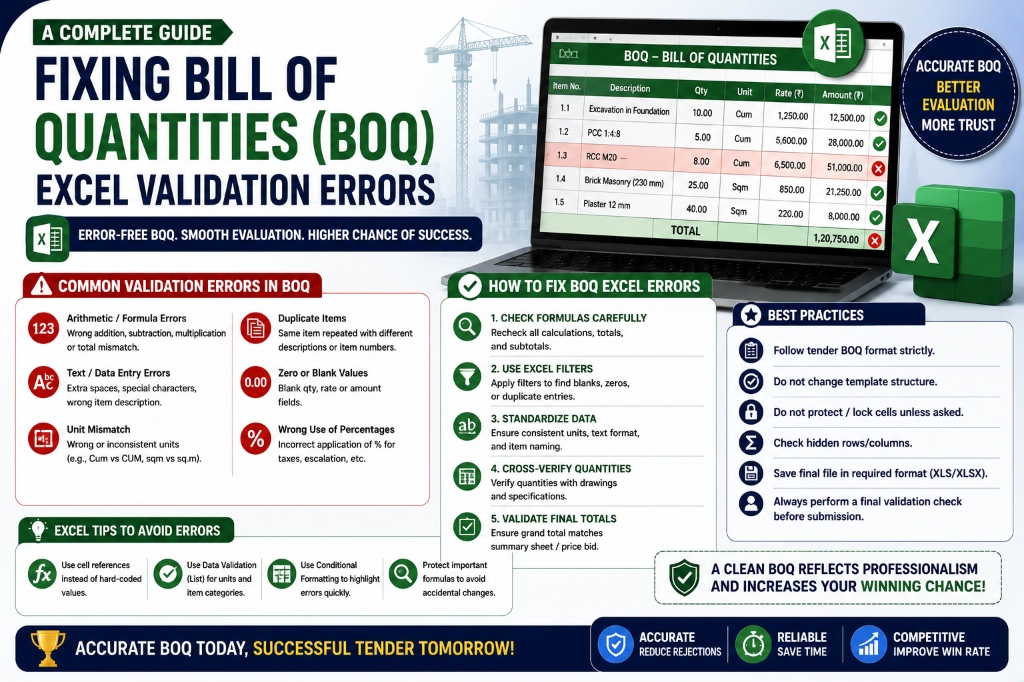
Quick Answer: BOQ (Bill of Quantities) Excel validation errors are the #1 reason bids get rejected before price evaluation. The three most common errors are: (1) "BOQ file is protected / unable to read BOQ file" — caused by Java JRE blocking the upload, fixed by reinstalling Java 32-bit and adding the portal URL to Java security exceptions. (2) "The basic BOQ validations are not complied" — caused by modified templates, deleted rows/columns, or broken formulas, fixed by re-downloading the original template and re-entering rates. (3) "Please enter the basic rate for at least one item" — caused by hidden Column M, unfilled rates, or wrong BOQ type selection, fixed by unhiding columns and filling all mandatory rate cells. With 72+ lakh orders processed on GeM annually and thousands of bids rejected daily for BOQ errors, mastering BOQ validation is the difference between winning and losing before the race begins.
menu_book Table of Contents
What Is a BOQ & Why Do Validation Errors Happen?
A Bill of Quantities (BOQ) is a structured Excel template provided by the procuring department that lists every item, service, or work required under a contract — along with quantities, units of measurement, and descriptions. The bidder fills in only the rate column (typically Column M). The system auto-calculates totals and validates the file before submission. To understand foundational rules, refer to our complete GeM portal guide.
Definition Box: Bill of Quantities (BOQ) — A standardized Excel template used in government e-procurement (GeM, CPPP, state portals) that lists items with descriptions, quantities, and units. Bidders fill only the designated rate cells. The system validates formulas, structure, and data integrity before accepting the bid. Any modification to the template structure triggers a validation error.
Getting "Validation Error" or corrupted macros on CPPP or state procurement portals? Use our AI BOQ Extractor to automatically clean cell formats, verify hidden formulas, and export clean, portal-compliant BOQs.
Extract Clean BOQ Data →Why BOQ Errors Are So Common
- Template Sensitivity: The Excel file contains protected cells, hidden formulas, and macros. Even accidentally pressing Delete on a protected cell can corrupt the validation.
- Java Dependency: CPPP and many state portals require Java Runtime Environment (JRE) to read and validate BOQ files. Outdated or 64-bit Java causes "file protected" errors.
- Multiple BOQ Types: Item Rate, Item Wise, and Percentage BOQs have different rules. Using the wrong filling method triggers validation failures.
- Portal Variations: GeM, CPPP, and state portals use different validation engines. A BOQ that works on GeM may fail on CPPP.
- Time Pressure: Bidders fill BOQs at 11 PM on the deadline day. Under stress, they skip validation steps.
The Cost: A BOQ validation error doesn't just delay your bid — it rejects it outright. The system won't even reach price evaluation. Your technical bid could be perfect, your price could be L1, but if the BOQ fails validation, you are disqualified.

Get the Bid Mastery Toolkit
From document download to token submission — every checklist, tracker, and milestone planner.
- ✓ 150-Point Pre-Submission Checklist (PDF)
- ✓ 50-Point Technical Bid Compliance Audit
- ✓ 30-Point Financial Bid Verification
- ✓ Bid Submission Timeline & Deadline Planner (Excel)
🔒 256-Bit Secure Razorpay Checkout · Lifetime Access · Instant Digital Delivery
The 3 Types of BOQ: Item Rate vs. Item Wise vs. Percentage
Understanding the BOQ type is the first step to avoiding errors. Each type has different filling rules, and using the wrong method is a guaranteed validation failure.
Type 1: Item Rate BOQ
Used when: The buyer wants rates for all items, but may not purchase all items. Bidders quote rates for every item; the buyer selects which items to order post-award.
Filling Rules:
- Fill the rate for EVERY item in the BOQ.
- You cannot leave any item blank.
- The system calculates:
Total = Quantity × Ratefor each item. - The Grand Total is the sum of all item totals.
Common Error: "Please enter the basic rate for S.No 1.02" — you missed filling a rate for one item.
Example:
| S.No | Description | Unit | Qty | Rate (You Fill) | Total (Auto) |
|---|---|---|---|---|---|
| 1.01 | Cement | Bag | 500 | ₹350 | ₹1,75,000 |
| 1.02 | Steel | Kg | 2000 | ₹65 | ₹1,30,000 |
| 1.03 | Sand | Cu.M | 50 | ₹1,200 | ₹60,000 |
| Grand Total | ₹3,65,000 |
Type 2: Item Wise BOQ
Used when: The buyer wants a lump-sum price for specific items or groups. Bidders can quote for some items and not others.
Filling Rules:
- Fill the rate for items you want to supply.
- Leave blank (or enter 0) for items you don't supply.
- The system evaluates each item separately.
Common Error: "Please enter the basic rate for at least one item" — you left all items blank.
Example:
| S.No | Description | Unit | Qty | Rate (You Fill) | Total (Auto) |
|---|---|---|---|---|---|
| 1.01 | Cement | Bag | 500 | ₹350 | ₹1,75,000 |
| 1.02 | Steel | Kg | 2000 | (Leave blank) | (Blank) |
| 1.03 | Sand | Cu.M | 50 | ₹1,200 | ₹60,000 |
Type 3: Percentage BOQ
Used when: The buyer has an estimated cost and wants bidders to quote a percentage above or below that estimate.
Filling Rules:
- Enter a percentage (e.g., +5%, -10%) in the designated cell.
- The system applies this percentage to the estimated cost.
- Used mainly in construction and works contracts.
Common Error: Entering a rupee value instead of a percentage, or entering the percentage in the wrong format (e.g., "5" instead of "5%" or "0.05").
Quick Comparison
| Feature | Item Rate BOQ | Item Wise BOQ | Percentage BOQ |
|---|---|---|---|
| Fill All Items? | ✅ Yes — mandatory | ❌ No — optional | ✅ Yes — one percentage |
| Leave Items Blank? | ❌ Never | ✅ Allowed | ❌ Never |
| Evaluation Method | Grand Total | Item-wise or Total Value | Percentage applied to estimate |
| Common On | GeM, CPPP | GeM, CPPP | CPWD, PWD, State Works |
| Rate Column | Column M | Column M | Designated percentage cell |
| Zero Allowed? | ❌ No (causes error) | ✅ Yes | ❌ No |
Critical: Check the tender document to confirm which BOQ type is being used. The title of the BOQ sheet usually indicates the type (e.g., "BoQ1_ItemRate" or "BoQ1_ItemWise").
Error #1: "BOQ File Is Protected / Unable to Read BOQ File" — The Java Fix
This is the most common and most frustrating BOQ error. It appears when the portal cannot read the BOQ file due to Java blocking it.
The Root Cause
The eProcurement portal (CPPP and some state portals) uses Java Runtime Environment (JRE) to read and validate BOQ files. When Java's security settings block the portal, the system throws:
- "BOQ file is protected"
- "Unable to read BOQ file"
- "Application blocked by Java security"
The Fix: Step-by-Step
Step 1: Uninstall Current Java
- Go to Control Panel → Programs → Uninstall a Program.
- Find all Java versions (JRE, JDK, Java SE).
- Uninstall all of them.
Step 2: Install Java 32-Bit (Not 64-Bit)
- Download Java 8 Update 321 (32-bit) from Oracle's archive.
- Do NOT install 64-bit Java. The eProcurement portal requires 32-bit.
- Install and restart your computer.
Step 3: Add Portal URL to Java Security Exceptions
- Open Java Control Panel (search "Configure Java" in Start menu).
- Go to the Security tab.
- Click Edit Site List.
- Add these URLs:
https://eprocure.gov.inhttps://eprocure.gov.in/*https://gem.gov.inhttps://gem.gov.in/*
- Set Security Level to Medium (if available) or High.
- Click OK.
Step 4: Clear Browser Cache & Java Cache
- In Java Control Panel → General → Temporary Internet Files → Settings → Delete Files.
- Check all boxes and delete.
- In your browser, clear cache and cookies (Ctrl+Shift+Delete).
Step 5: Disable Antivirus Temporarily
- Some antivirus programs (especially McAfee, Norton) block Java from reading local files.
- Disable antivirus for 10 minutes while uploading.
- Re-enable immediately after.
Step 6: Use Internet Explorer or Compatible Browser
- CPPP portals work best with Internet Explorer or Edge in IE Mode.
- Chrome and Firefox often block Java applets.
- If using Chrome, enable NPAPI plugins (if available) or switch to IE.
Step 7: Test Upload
- Log into the portal.
- Try uploading the BOQ again.
- If the error persists, check if the BOQ file itself is corrupted (see Error #2).
If Java Fix Doesn't Work: Alternative Causes
| Cause | Check | Fix |
|---|---|---|
| File Corruption | Open BOQ in Excel — does it show "Read Only" or macro errors? | Re-download from tender document |
| Wrong File Extension | Is the file .xls, .xlsx, or .rar? | Upload exactly what the portal asks for |
| Macro Security | Does Excel show "Macros disabled"? | Enable macros in Excel Trust Center |
| File Size | Is the file >10 MB? | Compress images, remove unnecessary sheets |
| Browser History | Have you tried multiple times? | Clear browser cache completely |
Instant Tender Eligibility & Risk Audit
Upload any 500-page NIT / BOQ PDF. Extract hidden disqualification traps, EMD waiver clauses, and complete eligibility criteria in under 45 seconds.
Error #2: "The Basic BOQ Validations Are Not Complied" — Template & Formula Fix
This is the most generic but most dangerous error. It means the system detected that the BOQ template structure has been altered.
Root Causes
- Template Modified: You deleted a row, inserted a column, or changed a header.
- Formula Broken: A cell formula was overwritten with a static value.
- Row/Column Deleted: Required system rows (like Row 12) were deleted.
- Wrong File Saved: You saved the file in a different format (.xlsx instead of .xls, or vice versa).
- Multiple Sheets: You added extra sheets to the workbook.
The Fix: Step-by-Step
Step 1: Re-Download the Original BOQ Template
- Go to the tender document page.
- Download the BOQ file again.
- Do not open it in any other program (like Google Sheets, LibreOffice, or WPS Office). Use only Microsoft Excel.
Step 2: Check for Deleted Rows/Columns
- Look at the row numbers. Are they sequential (1, 2, 3...) or do you see jumps (1, 2, 4, 5...)?
- If rows are missing, the template is corrupted. Start fresh.
Step 3: Verify Formulas
- Click on cells in the "Total" column. Do they show formulas (e.g.,
=C14*M14) or static values? - If static values, the formula is broken. Re-download the template.
Step 4: Check for Extra Sheets
- Look at the sheet tabs at the bottom. There should be only "BoQ1" (or as specified).
- Delete any extra sheets you added.
Step 5: Save in Correct Format
- If the original is
.xls, save as.xls(Excel 97-2003 Workbook). - If the original is
.xlsx, save as.xlsx. - Never convert between formats.
Step 6: Fill Only White/Unlocked Cells
- Protected cells are usually gray/blue. Only fill white cells.
- Do not type in header rows, formula columns, or system rows.
Step 7: Validate Before Upload
- Some portals have a "Validate" button before "Save." Always click Validate first.
- If Validate passes, then click Save/Freeze.
Error #3: "Please Enter the Basic Rate for At Least One Item" — Rate Filling Fix
This error appears when the system detects that no rates have been entered in the BOQ.
Root Causes
- All rates are blank: You forgot to fill Column M.
- Column M is hidden: The rate column is hidden and you didn't unhide it.
- Wrong sheet filled: You filled Sheet 1 but the system is checking Sheet 2.
- Item Rate BOQ type: You left some items blank (not allowed in Item Rate BOQ).
- Rates entered in wrong column: You typed rates in Column N instead of Column M.
The Fix: Step-by-Step
Step 1: Confirm BOQ Type
- Check the sheet name or tender document: Is it Item Rate, Item Wise, or Percentage?
- Item Rate: Fill ALL items.
- Item Wise: Fill at least one item (can leave others blank).
- Percentage: Enter percentage in the designated cell.
Step 2: Unhide Column M
- Select all cells (Ctrl+A).
- Go to Format → Columns → Unhide.
- If Column M was hidden, it will now appear.
Step 3: Check You're in the Right Column
- The rate column is typically Column M (labeled "Rate" or "Basic Rate").
- Do not enter rates in "Total Amount" or "Quantity" columns.
Step 4: Fill All Mandatory Items
- In Item Rate BOQ, scroll to the bottom. Are there more items below?
- Sometimes items are hidden below the visible area. Scroll down to check.
Step 5: Enter Rates in Correct Format
- Enter plain numbers:
350(notRs. 350or350/-). - Do not use commas:
175000(not1,75,000). - Do not enter formulas in the rate column: type the number directly.
Error #4: "Column M Should Either Contain a Formula or Blank" — Column Fix
This error appears at the department (buyer) end when creating the BOQ, but bidders may also see it if the department uploaded a faulty BOQ.
Root Cause
The department user accidentally entered a value in Column M (the bidder's rate column) while creating the BOQ. Column M must be either:
- A formula (e.g.,
=0or blank), OR - Completely blank (for bidders to fill).
If the department entered a number or text in Column M, the validation fails.
The Fix (For Bidders)
If you see this error while trying to fill the BOQ:
- Contact the Tender Inviting Authority (TIA) immediately.
- Inform them that the BOQ template has a value in Column M that should be blank.
- Request them to upload a corrected BOQ as a corrigendum.
- Do not attempt to modify the BOQ yourself — this will trigger Error #2.
The Fix (For Department Users)
- Open the BOQ template.
- Go to Column M.
- Delete any values or text in Column M.
- Ensure Column M cells contain either:
- A formula:
=0(for default zero), OR - Are completely blank.
- A formula:
- Do NOT enter any numbers, text, or special characters in Column M.
- Save and upload.
Error #5: "Row 12 Is Reserved for System Use. Please Do Not Modify It" — Row Protection Fix
Root Cause
Row 12 (or another designated row) contains system formulas, headers, or validation scripts. If you deleted, inserted, or modified this row, the BOQ validation fails.
The Fix
Step 1: Identify the Reserved Row
- The error message tells you the exact row number (e.g., Row 12, Row 13, Row 14).
Step 2: Check What You Changed
- Did you insert a new row above Row 12? This shifts the system row down.
- Did you delete Row 12? This removes the system formula.
- Did you type something in Row 12? This overwrites the system data.
Step 3: Restore the Original Template
- Do not try to fix Row 12 manually. The system row contains complex formulas and macros.
- Re-download the original BOQ template from the tender document.
- Re-enter all your rates from scratch.
Step 4: Prevention
- Never insert or delete rows in a BOQ template.
- Never type in gray/blue cells (system cells).
- Only fill white/unlocked cells.
Error #6: "Error Found in Quantity/Units/Total Amount Formula" — Formula Fix
Root Cause
The system detected that one of these cells is incorrect:
- Quantity cell: Contains text instead of a number, or is blank when it should have a value.
- Units cell: Contains an invalid unit or is blank.
- Total Amount formula: The formula
=Quantity × Rateis broken or missing.
The Fix
Step 1: Check the Specific Row
- The error message tells you the exact row (e.g., Row 14, Row 17).
- Go to that row and check:
- Is the Quantity cell a number? (Not text, not blank)
- Is the Unit cell filled? (Not blank)
- Is the Total Amount cell a formula? (Not a static value)
Step 2: Fix Quantity Cell
- If the Quantity cell is blank, enter the correct number.
- If it contains text (e.g., "As per site"), replace with a number.
- If the quantity is genuinely zero, enter
0(do not leave blank).
Step 3: Fix Unit Cell
- Ensure the unit is valid (e.g., "Nos", "Kgs", "Mtrs", "Ltrs", "Sets").
- Do not invent new units. Use only units specified in the tender.
Step 4: Fix Total Amount Formula
- Click the Total Amount cell. It should show a formula like
=C14*M14. - If it shows a static number, the formula is broken.
- Do not retype the formula. Re-download the template.
Step 5: The "All or None" Rule
- The error message says: "All of these cells should contain value OR all these cells should be blank."
- This means: For any given row, either all three (Quantity, Unit, Total) must have values, OR all three must be blank.
- You cannot have Quantity filled but Unit blank, or Unit filled but Total blank.
Error #7: "Run-Time Error 13 / 1004" — Macro & Data Type Fix
Run-Time Error 13: Type Mismatch
Root Cause: Incorrect data type in a cell. For example:
- A date field contains text.
- A number field contains a formula that returns text.
- A percentage field contains a decimal instead of a percentage.
Fix:
- Identify the cell causing the error (usually indicated in the error message).
- Check the data type:
- Numbers should be plain numbers (no text, no symbols).
- Dates should be in the format DD/MM/YYYY.
- Percentages should be entered as
5%(not0.05or5).
- Correct the data type and try again.
Run-Time Error 1004: Unable to Set Visible Property of Worksheet
Root Cause: The BOQ file has been corrupted. This happens when:
- The file was saved in a different format (e.g., .xlsx saved as .xls).
- A column was deleted or inserted, breaking the macro.
- The file was opened in non-Excel software (Google Sheets, LibreOffice, WPS).
- The macro was disabled when the file was saved.
Fix:
- Do not attempt to repair the file.
- Re-download the original BOQ template from the tender document.
- Open ONLY in Microsoft Excel (not Google Sheets, not LibreOffice, not WPS).
- Enable macros when prompted: Enable Content.
- Re-enter all rates.
- Save in the original format.
Error #8: "Bidder BOQ Status Does Not Comply" — Compliance Fix
This is a catch-all error that appears when the system cannot determine why the BOQ is invalid, but it knows something is wrong.
Root Causes (Bidder Side)
- Rates not filled properly for the BOQ type (Item Rate vs. Item Wise).
- Company name not filled in Cell B8 (or designated bidder name cell).
- BOQ file has internal issues (corruption, wrong format, modified template).
- Multiple BOQ sheets in the file, but only one was filled.
Root Causes (Department Side)
- Column inserted or deleted by the department while creating the BOQ.
- Required formula missing in a system cell.
- Incorrect data type used (e.g., text in a number field).
- Actual BOQ format modified (headers changed, structure altered).
The Fix
For Bidders:
- Double-check that you filled the company name in the designated cell (usually B8).
- Confirm you filled rates according to the BOQ type (all items for Item Rate, at least one for Item Wise).
- If you have multiple BOQ sheets, fill ALL of them.
- If the error persists, re-download the template and start over.
For Departments:
- Do not insert or delete columns/rows.
- Do not change headers or sheet names.
- Use only the standard template provided by the portal.
- Ensure all formulas are intact before uploading.
Error #9: "Please Enter the Bidder Name for Cell B8" — Bidder Name Fix
Root Cause
The BOQ template has a designated cell (usually B8) where the bidder must enter their company name. If this cell is blank, the validation fails.
The Fix
Step 1: Find the Bidder Name Cell
- Look for a cell labeled: "Name of Bidder / Bidding Firm / Company."
- This is usually Cell B8 but may vary by template.
Step 2: Enter Your Company Name
- Type your company name exactly as it appears in your Udyam/GST registration.
- Do not use abbreviations unless your registered name is abbreviated.
- Do not add titles like "Pvt. Ltd." if they are not part of your registered name.
Step 3: If Cell B8 Is Protected
- If you cannot type in B8, it means the department accidentally protected it.
- Contact the Tender Inviting Authority and request a corrigendum.
- Do not try to unprotect the sheet yourself — this triggers Error #2.
Step 4: For Department Users
- When creating the BOQ, Cell B8 should be unprotected for bidders to fill.
- If you protected the sheet before ensuring B8 is unlocked, bidders cannot fill it.
- Unprotect the sheet, unlock B8, then re-protect.
Error #10: "Please Remove Duplicate Item Code" — Item Code Fix
Root Cause
The BOQ template has a Column C (or designated column) for Item Codes. Each item must have a unique code. If two items have the same code, validation fails.
The Fix (For Department Users)
- Open Column C (Item Code column).
- Check for duplicate values.
- Ensure every item has a unique code:
- ✅ 1.01, 1.02, 1.03...
- ❌ 1.01, 1.01, 1.02...
- If items are similar, use sub-codes: 1.01A, 1.01B.
The Fix (For Bidders)
- This is a department-side error. Bidders cannot fix it.
- Contact the TIA and inform them of the duplicate item code.
- Request a corrected BOQ via corrigendum.
GeM-Specific BOQ Errors & Fixes
GeM uses a different BOQ system than CPPP. Here are GeM-specific issues:
Error: "BOQ Upload Failed — File Format Not Supported"
Fix:
- GeM accepts .xlsx and .xls formats.
- Do not upload .pdf, .csv, or .rar files for BOQ.
- If the file was created in Google Sheets, download as .xlsx and re-save in Excel.
Error: "Total Bid Value Mismatch"
Fix:
- The total calculated by GeM does not match your manual calculation.
- Check:
- Did you include GST in the rate when the tender asked for GST-exclusive rates?
- Did you round decimals correctly? (GeM uses 2 decimal places).
- Are there hidden items you missed?
Error: "BOQ Items Exceed Maximum Limit"
Fix:
- GeM allows maximum 200 line items in a BOQ.
- If your tender has more than 200 items, the buyer must split into multiple bids or use a custom catalogue.
- Minimum 5 line items are required for BOQ bidding on GeM.
Error: "Item Wise Evaluation — Bid Estimate Value Not Specified"
Fix:
- For Item Wise or Group Wise evaluation, the buyer must specify a bid estimate value for each item/group.
- If the buyer forgot to enter this, the bid cannot proceed.
- Contact the buyer to add the estimate values.
CPPP-Specific BOQ Errors & Fixes
CPPP (eprocure.gov.in) uses older Java-based BOQ validation. Here are CPPP-specific issues:
Error: "Java Heap Space / Java.Lang.OutOfMemory"
Fix:
- Your file is too large or your system has low RAM.
- Reduce file size: compress images, remove unnecessary formatting.
- Increase Java heap space:
- Java Control Panel → Java → View → Runtime Parameters.
- Add:
-Xms512m -Xmx1024m
- Close all other applications before uploading.
Error: "File Is Not Signed Properly. Try Again"
Fix:
- Make sure you clicked the "Sign" link before uploading.
- The DSC (Digital Signature) must be mapped to your login ID.
- If the sign button doesn't appear, it's a Java issue (see Error #1 fix).
- Reduce file size if it's too large.
Error: "Selected File Does Not Match Required File Type"
Fix:
- The portal expects a specific file type (e.g., .rar, .pdf, .xls).
- Check the tender document for the exact file type required.
- If uploading .rar, ensure it was created properly (not just renamed).
- Do not rename file extensions (e.g., renaming .zip to .rar).
The 10-Point BOQ Pre-Upload Checklist
Use this checklist before clicking "Freeze Bid" or "Submit." It takes 5 minutes and saves you from rejection.
Checklist for Bidders
- 1. Downloaded Fresh Template: I downloaded the BOQ from the current tender document (not reused from a previous tender).
- 2. Opened in Excel Only: I opened the file in Microsoft Excel, not Google Sheets, LibreOffice, or WPS.
- 3. Enabled Macros: I clicked "Enable Content" when Excel prompted about macros.
- 4. Confirmed BOQ Type: I checked whether it's Item Rate, Item Wise, or Percentage, and I'm filling accordingly.
- 5. Filled Company Name: I entered my company name in the designated cell (usually B8).
- 6. Filled All Rates: I filled rates in Column M (or designated column) for all required items.
- 7. No Blanks in Mandatory Cells: I did not leave any mandatory cell blank. I entered 0 only where genuinely applicable.
- 8. Did Not Modify Template: I did not delete rows, insert columns, change headers, or modify formulas.
- 9. Saved in Correct Format: I saved the file in the same format as the original (.xls or .xlsx).
- 10. Validated Before Upload: I clicked the "Validate" button (if available) and it passed before I clicked "Save" or "Freeze."
Checklist for Department Users (Buyers)
- 1. Used Standard Template: I used the portal-provided BOQ template, not a custom-created one.
- 2. Column M Is Blank: I did not enter any values in Column M (the bidder rate column).
- 3. No Duplicate Item Codes: Every item in Column C has a unique code.
- 4. System Rows Intact: I did not delete or modify Row 12 (or other system-designated rows).
- 5. Formulas Working: I clicked on Total Amount cells and confirmed they contain formulas, not static values.
- 6. Correct Data Types: Quantity cells contain numbers, Unit cells contain valid units, Date cells contain dates.
- 7. Bidder Name Cell Unlocked: Cell B8 (bidder name) is unprotected so bidders can fill it.
- 8. No Extra Sheets: I did not add extra sheets to the workbook.
- 9. Saved in Original Format: I saved in the same format as the template (.xls or .xlsx).
- 10. Tested Upload: I uploaded the BOQ to the portal and confirmed it passes validation before publishing the tender.
Case Study: How a ₹45 Lakh Tender Was Lost to a BOQ Error
Company: M/s. Precision Electricals, Pune (Udyam-registered Small Enterprise) Sector: Electrical Switchgear and Distribution Panels Tender: Supply and installation of LT panels for a State PSU Value: ₹45 Lakh BOQ Type: Item Rate (15 line items)
What Happened
M/s. Precision Electricals had a strong technical bid, competitive pricing, and 8 years of experience. They were confident of winning. Here's their timeline:
Day 1 (Tender Published): Downloaded tender documents and BOQ template.
Day 7 (Bid Preparation): Technical documents prepared. Financial team started filling the BOQ.
Day 10 (The Error): The financial manager filled all 15 items in the BOQ. However, he used Google Sheets to open the Excel file (his laptop didn't have Excel installed). He filled the rates, downloaded the file as .xlsx, and saved it.
Day 12 (Upload Attempt): While uploading the BOQ to the state e-procurement portal, the system threw: "The basic BOQ validations are not complied. Please correct the issue."
Day 12 (Attempted Fix): The manager tried to "fix" the error by copying all data into a new Excel file. He recreated the BOQ from scratch in a blank Excel workbook. He uploaded again.
Day 12 (Second Error): The system threw: "Row 12 is reserved for system use. Please do not modify it." (Because his recreated file didn't have the system row at all.)
Day 13 (Deadline Day): With 4 hours to the deadline, the team panicked. They contacted the TIA, who said they could not issue a corrigendum for a bidder-side error. The team tried to find a laptop with Excel, re-downloaded the template, and rushed to fill it again.
Day 13 (Deadline Hour): They submitted the bid 15 minutes before the deadline. But in the rush, they forgot to fill the company name in Cell B8. The system accepted the upload (some portals don't validate B8 at upload time), but during evaluation, the bid was declared non-responsive due to incomplete BOQ.
The Result
- Bid Status: Rejected (non-responsive).
- Reason: BOQ validation failure + missing bidder name.
- Contract Awarded To: L2 bidder at ₹48.5 lakh — ₹3.5 lakh higher than Precision Electricals' quote.
- Loss: ₹45 lakh contract + 2 weeks of preparation + EMD of ₹2.25 lakh (blocked for 3 months).
Root Cause Analysis
| Failure Point | Correct Practice |
|---|---|
| Used Google Sheets instead of Excel | Always use Microsoft Excel for BOQ files |
| Modified template structure by recreating | Re-download original template; never recreate |
| No validation before deadline day | Validate BOQ 48 hours before deadline |
| Missing company name in B8 | Use the 10-point checklist before every upload |
| No backup laptop with Excel | Maintain a dedicated bidding workstation |
The Lesson
"We lost ₹45 lakh not because our price was high, but because we used Google Sheets. A free software cost us a year's revenue. Now we have a dedicated Excel laptop, a 10-point checklist, and we validate our BOQ 48 hours before every deadline." — Mr. Anand Patil, Director, M/s. Precision Electricals
Frequently Asked Questions (FAQ)
Q1. Can I use Google Sheets or LibreOffice to fill a BOQ?
A: No. Government BOQ templates contain macros, protected cells, and formulas that only work correctly in Microsoft Excel. Google Sheets, LibreOffice, WPS Office, and Apple Numbers often corrupt the file structure, break formulas, or change the format. Always use Microsoft Excel 2010 or later.
Q2. What if I don't have Microsoft Excel?
A: You have three options: (1) Purchase a Microsoft 365 subscription (₹4,899/year for personal use, cheaper for business). (2) Use a friend's or colleague's Excel-installed laptop for bidding. (3) Use Excel Online (browser-based) — but test the downloaded file first, as some macros may not work. Do not use Google Sheets.
Q3. Can I modify the BOQ template to add more items?
A: No. Never insert rows, delete columns, or modify the template structure. If you need to quote additional items, check if the tender allows an "Any Other Item" row. If not, include the additional item in your technical bid with a separate price annexure (if permitted by the tender). Modifying the BOQ template triggers validation errors.
Q4. What is the difference between .xls and .xlsx BOQ files?
A: .xls is the older Excel 97-2003 format. .xlsx is the newer Excel 2007+ format. The portal expects the same format as the original template. If the template is .xls, save as .xls. If it's .xlsx, save as .xlsx. Converting between formats can corrupt macros and trigger validation errors.
Q5. Why does my BOQ work on GeM but fail on CPPP?
A: GeM and CPPP use different validation engines. GeM uses modern web-based validation. CPPP uses Java-based validation. A BOQ that passes GeM may fail CPPP if: (1) Java is not configured correctly, (2) the file format is wrong, (3) macros are disabled. Always test on the specific portal before submission.
Q6. What should I do if the BOQ has a hidden item I can't see?
A: Select all cells (Ctrl+A), then go to Format → Rows → Unhide. Also check Format → Columns → Unhide. If items are still hidden, the template may be corrupted. Re-download from the tender document.
Q7. Can I enter "0" for items I don't want to supply?
A: It depends on the BOQ type:
- Item Rate BOQ: ❌ No. Entering 0 may be treated as a valid rate, making your total artificially low. If you can't supply an item, do not bid on this tender (or negotiate with the buyer).
- Item Wise BOQ: ✅ Yes. Entering 0 or leaving blank is allowed for items you don't supply.
- Percentage BOQ: ❌ No. Enter a valid percentage.
Q8. What if the "Validate" button is grayed out?
A: This usually means: (1) Java is not installed or blocked, (2) the portal hasn't fully loaded the BOQ module, (3) your browser is incompatible. Try: refreshing the page, switching to Internet Explorer, reinstalling Java, or contacting the portal helpdesk.
Q9. Should I include GST in the BOQ rate?
A: Check the tender document instructions. Most Central Government tenders require rates exclusive of GST (GST is added separately). Some State tenders require inclusive rates. Quoting in the wrong format is a financial error that can disqualify your bid. When in doubt, quote EXCLUSIVE of GST and mention it clearly.
Q10. What is the most important rule for BOQ success?
A: Never modify the template. Download it, open it in Excel, fill only the white/unlocked cells, save in the original format, and upload. That's it. Every BOQ error can be traced back to a template modification, a wrong software, or a missed validation step.
Conclusion & Emergency Action Plan
BOQ validation errors are not mysterious curses — they are predictable, preventable, and fixable technical issues. The problem is that most bidders treat the BOQ as an afterthought, filling it in the final hours before deadline. By then, a single Java error or a broken formula can cost you the entire contract.
The data is clear: thousands of bids are rejected daily for BOQ errors that take 5 minutes to prevent. The ₹45 lakh case study is not an exception — it's the norm. MSMEs, in particular, cannot afford to lose tenders for technical reasons when their prices are competitive.
Emergency Action Plan (If You Have a BOQ Error Right Now)
| Time Remaining | Action |
|---|---|
| More than 48 hours | Re-download the template. Fill carefully in Excel. Run the 10-point checklist. Validate. Submit. |
| 24–48 hours | Identify the exact error message. Use the error-to-fix lookup in this article. Fix and validate. If Java error, reinstall Java immediately. |
| 12–24 hours | If you can't fix it yourself, contact TenderFlow Pro support or the portal helpline. Do not waste time on trial-and-error. |
| Less than 12 hours | Contact the TIA immediately if it's a department-side error (protected cell, duplicate item code, wrong BOQ type). Request emergency corrigendum. If it's your error, focus on the simplest fix: re-download template + re-fill. |
| Less than 2 hours | If the error persists, consider withdrawing and saving your EMD. A rejected bid is worse than no bid. |
The 5 Golden Rules of BOQ
- Use Excel only. Never Google Sheets. Never LibreOffice. Never WPS.
- Never modify the template. No deleted rows. No inserted columns. No changed headers.
- Fill only white cells. Gray/blue cells are system-protected.
- Validate before you save. Click Validate first. Then Save. Then Freeze.
- Check 48 hours before deadline. Not 2 hours. Not 2 minutes. 48 hours.
"The BOQ is not a formality. It is a gatekeeper. Pass it, and your price is evaluated. Fail it, and your price never sees the light of day. Treat the BOQ with the same respect you treat your price — because without a valid BOQ, your price is worthless."
Related Articles
- GeM Portal Reverse Auction Strategy: Complete Winning Guide
- Make in India Preference Policy: Complete DPIIT PPP-MII Guide
- Limited Tender Enquiry (LTE): Rules, Eligibility & Supplier Registration
- Proprietary Article Certificate (PAC): GFR 166 Complete Guide
- Debarment & Blacklisting in Government Tenders: GFR 2017 Rules
- NSIC Single Point Registration: Complete Benefits Guide
- Splitting of Tenders Under GFR Rule 157: Detection & Challenge Guide
Disclaimer: This article is for informational purposes only. Portal rules and BOQ templates are subject to change. Always verify current requirements on GeM, CPPP, or your state e-procurement portal before bidding. TenderFlow Pro is not affiliated with NIC, GeM, or any government department.
© 2026 TenderFlow Pro. All rights reserved.